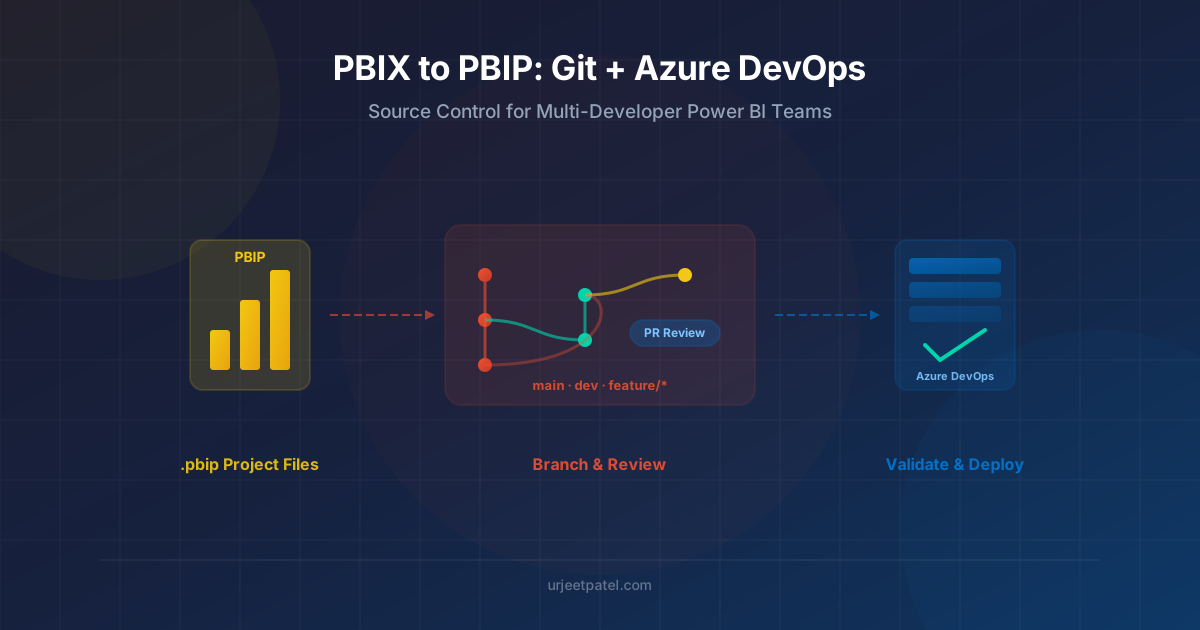
From PBIX to PBIP: Git and Azure DevOps for Multi-Developer Power BI Teams
A practical migration guide for experienced Power BI developers moving from PBIX to PBIP, with a real Git branching model and an Azure DevOps setup that supports multiple developers working on the same reports and semantic models.
If you have shipped Power BI reports for a while, you already know the real pain point is not building the report. It is what happens once more than one developer needs to touch the same .pbix file — there is no real way to merge two people’s changes, so the usual “solution” is a naming convention like Sales_v3_final_FIXED.pbix and a prayer that nobody overwrites someone else’s changes.
PBIP — Power BI Project — is what finally makes it possible to treat a report and its semantic model like normal source code. This post is not an introduction to what PBIP is; it is a migration and workflow guide for developers who already know Power BI well and want to move an existing PBIX-based team onto Git and Azure DevOps without breaking everything on day one. If you need the PBIP/TMSL/TMDL/PBIR background first, Using PBIP and Claude Code covers that — this post picks up from there.
Where You Are Starting From
Most experienced Power BI teams have some version of this today:
- Reports live as
.pbixfiles in SharePoint, OneDrive, or a shared network drive. - “Source control” means file naming and folder dates.
- One person usually owns a given report because merging two people’s work is effectively impossible.
- Deployment means manually publishing from Desktop, or using Power BI deployment pipelines with no real code review step.
None of that is wrong for a single-developer report. It falls apart the moment two people need to work on the same semantic model at the same time, or you need an audit trail of who changed a measure and why.
Step 1: Enable PBIP and Convert Existing Reports
PBIP is a Power BI Desktop feature you turn on, then use Save As to convert an existing PBIX.
- In Power BI Desktop, go to File → Options and settings → Options → Preview features.
- Enable Power BI Project (.pbip) save option.
- If you want the file-per-object report format, also enable Store reports using enhanced metadata format (PBIR). New reports have defaulted to PBIR since early 2026, but a report converted from an older PBIX may still land on the legacy
report.jsonformat unless you check this. - If you want TMDL instead of TMSL for the semantic model, enable Store semantic model using TMDL format. This is still a preview feature; TMSL (
model.bim) is the default and is fully supported. - Open the existing
.pbix, then File → Save As, and choose Power BI project files (*.pbip).
If you enabled TMDL, this is the difference that actually sells the format to a skeptical team. A measure that used to be buried in model.bim as an escaped JSON string now reads as plain text in a table file:
measure 'Total Sales' = SUM(Sales[SalesAmount])
    formatString: $#,0.00
    displayFolder: Base Measures
That is a real diff line in a PR, not a blob of JSON you have to mentally parse.
A few things worth knowing before you convert a whole portfolio of reports at once:
- Convert one report first and open it again in Desktop. Confirm nothing about behavior changed before you touch the rest.
- Check which format you actually landed on. A report saved months apart from another can end up on different combinations of PBIR/PBIR-Legacy and TMSL/TMDL if preview features were toggled differently. Mixed formats across a team are a real source of confusing diffs later, so standardize the preview feature settings across every developer’s Desktop before converting anything.
- Do this migration on a branch, not directly against whatever your current “source of truth” copy is. Converting is a one-way trip in the sense that going back to a single PBIX loses the benefit; you want the ability to compare the converted project against the original if something looks off.
Step 2: Set Up the Git Repository Correctly
This is the part people skip and then regret. PBIP produces some files that should never be committed.
A .gitignore for a Power BI project repo should include at least:
# Power BI local cache and user-specific settings
.pbi/
*.pbi.cache
.pbi/localSettings.json

# Desktop temp/lock artifacts
~$*.pbip
*.tmp

# Do not commit credentials or connection strings if they end up here
*.pbids
The .pbi/localSettings.json file matters specifically: it stores machine-local state, and if you commit it, every developer’s Desktop will keep “fighting” over it on every commit, producing noise diffs with no actual content change.
Also decide upfront:
- One repo per report/workspace, or one repo for a whole domain of reports? For small teams, a single repo containing multiple PBIP projects (one per report) works fine and keeps history and PR review centralized. For larger teams with genuinely independent reports and separate owners, separate repos avoid unrelated changes triggering unrelated pipeline runs.
- Where do the
.SemanticModeland.Reportfolders for a shared model live if multiple reports use the same semantic model? Decide this before your second report exists, because retrofitting a shared-model structure after two teams have diverged is painful.
Push the converted project to an Azure DevOps repo:
git init
git remote add origin https://dev.azure.com/<org>/<project>/_git/<repo>
git add .
git commit -m "Initial PBIP conversion for Sales Report"
git push -u origin main
Step 3: A Branching Model That Actually Fits Power BI
Standard Git branching advice mostly applies, with one adjustment: Power BI Desktop is still a single-user editing tool. Two people cannot have the same PBIP project open in Desktop and expect Git to merge their Desktop-driven changes cleanly, especially on the report side.
A model that works well in practice:
mainalways reflects what is actually published to the production workspace.devis the integration branch. Feature branches merge here first, and this is what a shared “dev” Power BI workspace is deployed from.- Feature branches per unit of work, not per developer.
feature/sales-yoy-measure,feature/executive-page-redesign. Small, scoped branches are what make PBIP diffs reviewable at all. - Avoid two people editing the same
.Reportfolder in overlapping branches. Report-level JSON/PBIR merges are still rough. Split work by page or by object where you can, and treat the semantic model (measures, relationships, TMDL tables) as the part that tolerates concurrent branches best, because it is more structured text.
The practical rule I give teams: the semantic model merges like code, the report merges like a spreadsheet. Plan your branch scope accordingly. If a report redesign and a DAX refactor are both in flight, keep them on separate branches touching separate folders, and merge the model change first.
Step 4: Code Review That Actually Means Something
This is the entire point of the migration, so it is worth being deliberate about it.
In Azure DevOps, set up a branch policy on main (and ideally dev) requiring:
- At least one reviewer, ideally someone who did not write the change.
- A linked work item, if your team tracks report changes that way.
- Build validation (see the pipeline below) before merge is allowed.
What a good PR review actually looks like with PBIP:
- For semantic model changes: read the TMDL or
model.bimdiff like you would read a code diff. A new measure, a changed relationship’s cross-filter direction, a changed data type — all of that is now visible and commentable in the PR, instead of invisible inside a PBIX. - For PBIR report changes: diffs are JSON and are noisier, but still useful for catching things like an accidentally changed data source binding, a visual moved to the wrong page, or a filter that got reset. Do not expect a clean line-by-line read the way you get with TMDL; expect to spot-check the meaningful fields (visual type, field bindings, page name) and then actually open the report in Desktop to verify visually.
- Reject “I’ll just fix it in Desktop after merge.” That defeats the entire workflow. If the PR diff does not represent the true state of the report, the PR is not doing its job.
Step 5: An Azure DevOps Pipeline That Validates Before Merge
You are not compiling anything, but a build validation pipeline still earns its keep by catching structural problems before they reach a shared workspace. A minimal but useful pipeline:
trigger: none

pr:
  branches:
    include:
      - dev
      - main

pool:
  vmImage: 'windows-latest'

steps:
  - task: PowerShell@2
    displayName: 'Validate PBIP project structure'
    inputs:
      targetType: 'inline'
      script: |
        $pbipFiles = Get-ChildItem -Recurse -Filter *.pbip
        if ($pbipFiles.Count -eq 0) {
          Write-Error "No .pbip files found in repository."
          exit 1
        }
        foreach ($file in $pbipFiles) {
          Write-Host "Found PBIP project: $($file.FullName)"
        }

  - task: PowerShell@2
    displayName: 'Validate JSON and TMDL files parse correctly'
    inputs:
      targetType: 'inline'
      script: |
        $jsonFiles = Get-ChildItem -Recurse -Include *.json,*.bim,*.pbir
        $failed = $false
        foreach ($f in $jsonFiles) {
          try {
            Get-Content $f.FullName -Raw | ConvertFrom-Json | Out-Null
          } catch {
            Write-Error "Invalid JSON in $($f.FullName): $_"
            $failed = $true
          }
        }
        if ($failed) { exit 1 }

  - task: PowerShell@2
    displayName: 'Check for local settings accidentally committed'
    inputs:
      targetType: 'inline'
      script: |
        if (Test-Path ".pbi/localSettings.json") {
          Write-Error "localSettings.json should never be committed. Add it to .gitignore."
          exit 1
        }
That catches the two most common self-inflicted problems: a broken JSON/TMDL file from a bad merge, and a leaked local-settings file. It will not tell you the DAX is correct or the visuals still look right — that is still a human-in-Desktop step.
For actual deployment, there are three realistic options:
- Power BI deployment pipelines (the built-in Power BI service feature) triggered manually or via the REST API after a merge to
dev/main, if your workspace strategy already uses them. - fabric-cicd or the Power BI/Fabric REST APIs directly, called from an Azure DevOps release pipeline with a service principal, if you need fully automated push-to-workspace on merge. This is the better fit once you have more than a couple of reports, because it removes the manual “someone remembers to publish” step entirely.
- Microsoft Fabric’s native Git integration, where a Fabric-enabled workspace connects directly to a branch in your Azure DevOps repo and syncs PBIP items in both directions — changes committed to the branch appear in the workspace, and changes made in the workspace (through the Fabric portal’s “Source control” pane) can be committed back. A lot of enterprise teams are actively weighing this against the pipeline-based approach right now. It removes custom deployment code entirely, but it also means the workspace itself becomes a place changes can originate, which is a different trust model than “the pipeline is the only way in.” If you go this route, treat the connected branch the same way you’d treat any protected branch:
mainshould still be gated by PR review, not written to directly from the workspace.
Whichever option you use, the semantic model’s data source credentials and any gateway bindings are workspace configuration, not repo content. Do not try to make the pipeline (or Fabric’s Git sync) manage credentials; that belongs in the target workspace’s dataset settings, set once per environment.
Step 6: Workspace Strategy for Multiple Developers
Git solves the “whose file is newest” problem. It does not solve “whose changes are actually live for testing.” You need an explicit environment strategy alongside it:
- Dev workspace: deployed from the
devbranch, ideally on every merge. Individual developers still do exploratory work in Desktop against their own.pbix-style local session, but the moment something is worth sharing, it goes through a branch and PR, not a shared workspace file. - Test/UAT workspace: deployed from a release candidate branch or tag, used for stakeholder sign-off.
- Production workspace: deployed only from
main, only after PR review and, ideally, only through the pipeline rather than a manual publish from Desktop.
The discipline that actually makes multi-developer collaboration work is small and boring: nobody publishes to a shared workspace directly from Desktop once the project is under source control. Every change goes in through the branch. It feels slower for a one-line fix. It is what prevents the exact problem you were trying to solve by adopting PBIP in the first place.
Common Friction Points and How to Handle Them
Report-side merge conflicts. Two developers editing different pages of the same report on separate branches usually merge fine with PBIR, since each page is its own file. Two developers editing the same page will conflict, and resolving JSON merge conflicts by hand is not fun. Split page ownership where you can.
TMDL vs. TMSL mismatches across a team. If one developer’s Desktop is on an older preview feature configuration, they will silently save
model.bimwhen everyone else is on TMDL, producing a huge, confusing diff. Standardize Desktop preview feature settings across the team and check for it in review.Line endings and encoding. Add a
.gitattributesfile that normalizes line endings for.json,.tmdl, and.bimfiles, so diffs do not get polluted by CRLF/LF noise between Windows machines:*.json text eol=lf *.tmdl text eol=lf *.bim text eol=lfSomeone opens the project, Desktop reformats whitespace, and now there is a huge diff with no real change. This happens most with
model.bim/TMSL. It is one more reason TMDL is worth adopting once you are comfortable with the preview status — it is more stable under repeated saves.RLS roles and sensitivity labels. These are part of the semantic model definition and will show up in diffs. Review them with the same scrutiny as a measure change; an accidentally weakened row-level security role is a much bigger problem than a broken visual.
Wrapping Up
Every piece here is ordinary on its own: a .gitignore that actually excludes local state, a branching model that respects how report and model files merge differently, a PR policy that treats the diff as real, and a pipeline that catches structurally broken files before they reach a shared workspace. Put together, they give a Power BI team the same answers every other codebase already has — what changed, who changed it, was it reviewed, and can we get back to a known-good state if it breaks.
That is the actual migration. The file format change is just what makes the rest of it possible.
TL;DR: Setup Checklist
- Standardize Desktop first. Every developer enables the same preview features (PBIP, PBIR, TMDL) before anyone converts a report, so the whole team lands on the same file format.
- Convert one report at a time.
File → Save As → Power BI project files (.pbip), on a branch, and reopen it in Desktop to confirm nothing broke before converting the rest. - Set up
.gitignorebefore the first commit. Exclude.pbi/,.pbi/localSettings.json,~$*.pbip, and*.pbids. Add.gitattributesto normalize line endings on.json/.tmdl/.bim. - Push to Azure DevOps and pick a branch model:
main(production),dev(integration), short-livedfeature/*branches scoped to one object, not one developer. - Turn on branch policies on
main/dev: required reviewer, linked work item, and build validation before merge. - Add a PR validation pipeline that checks a
.pbipfile exists, all JSON/TMDL/.bimfiles parse, and no local-settings file snuck into the commit. - Pick one deployment path — Power BI deployment pipelines, fabric-cicd/REST API from a release pipeline, or Fabric’s native Git-connected workspace — and stop publishing to shared workspaces manually from Desktop.
- Map workspaces to branches: dev workspace from
dev, UAT from a release branch/tag, production only frommain.
Related Posts
How PBIP makes Power BI projects easier to diff, review, and edit with tools like Claude Code, with a practical look at where the workflow helps and where it still needs care.

Explore how AI capabilities in Power BI Desktop can transform your data analysis — from smart narratives to automated insights and natural language queries.